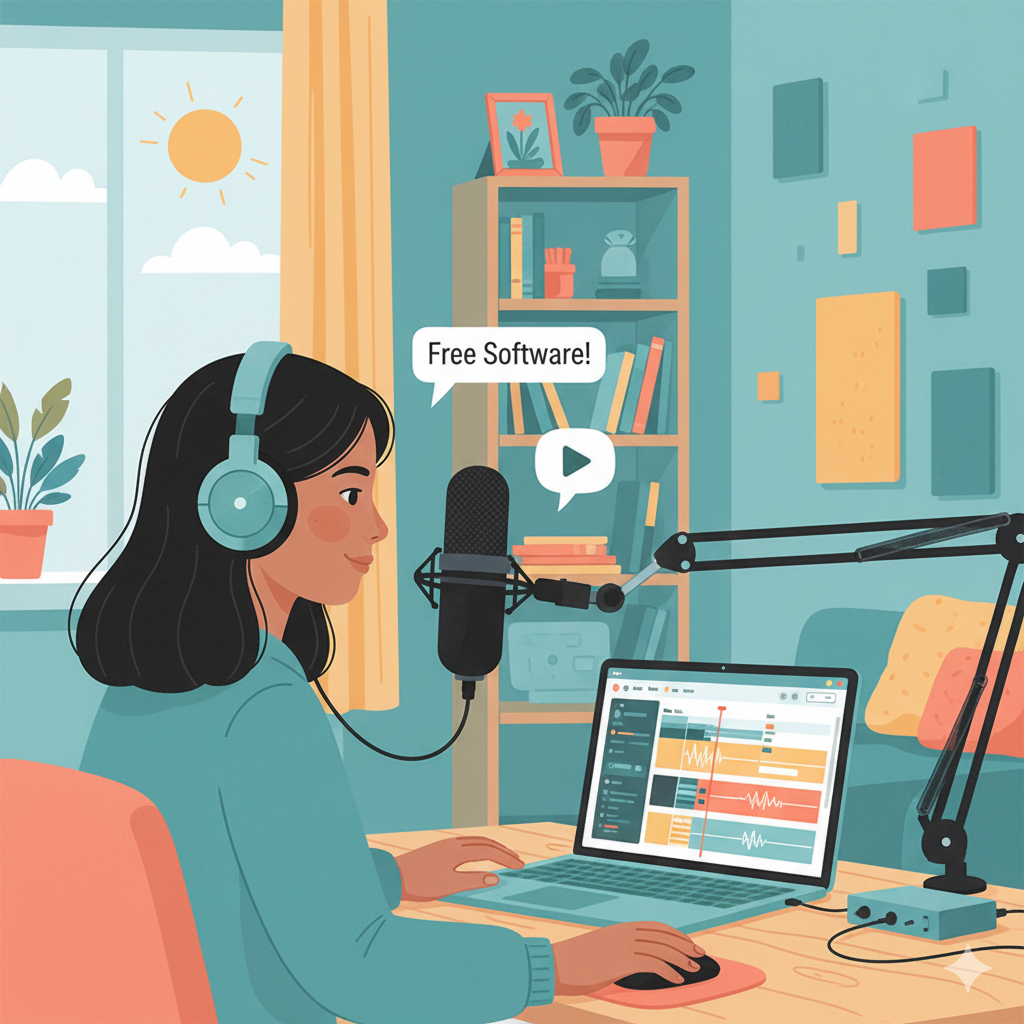
When most people think about editing podcasts, they picture expensive software and complicated tools that only professionals can use. This belief often holds beginners back, because they assume they cannot create a good-sounding podcast without spending a lot of money. The truth is that you do not need to start with costly programs to achieve clear and polished audio.
Many first-time podcasters get stuck between two frustrations. On one side, professional editing tools feel out of reach because of their price. On the other hand, relying on poor-quality audio makes it hard to attract and keep listeners. This gap leads to wasted time, stalled launches, and sometimes even abandoned podcast ideas.
The good news is that you can start with free software that is both powerful and easy enough for beginners to learn. In this post, we will walk through some of the best free podcast editing software available right now. We will cover their strengths, their limitations, and give you a quick tutorial so you can begin editing without delay.
If you are looking for podcast editing software free of cost, these are the best options to explore.
Audacity: The Classic Free Editor
Audacity has been around for years and remains one of the most popular choices for podcasters who want a reliable, free tool to edit their episodes. Because it is open-source, the software is completely free to download and has a large community of users who share tips, plug-ins, and tutorials. It works on Windows, Mac, and Linux, which means almost anyone can access it without worrying about compatibility.
Why podcasters like Audacity:
One of its biggest strengths is the range of editing features it offers at no cost. You can cut, trim, and rearrange audio clips, reduce background noise, and apply effects like compression and equalization to make your voice sound more polished. It also supports multitrack editing, so you can work with more than one audio file at the same time, which is useful if you record with a co-host or add music and sound effects.
Where Audacity falls short:
The biggest challenge for beginners is the interface. Audacity looks and feels a bit outdated compared to modern editing software. The menus are full of options, which can feel overwhelming at first. This does not mean it is difficult to use, but it does take time to get comfortable with the workflow. Once you get past the learning curve, though, you will find that it gives you professional-level control without the price tag.
Best use case:
Audacity is an excellent choice for beginners who are serious about learning the basics of audio editing and want full control over their sound. If you are patient and willing to learn, it can take your podcast from a raw recording to a polished episode.
GarageBand: The Apple Option
If you own a Mac, you already have access to GarageBand. It comes pre-installed on most Apple devices, including MacBooks, iPads, and iPhones, which makes it one of the easiest ways to start editing a podcast without spending any money. Because it is designed with beginners in mind, the layout is clean, simple, and far less intimidating than other editing tools.
Why podcasters like GarageBand:
GarageBand is extremely user-friendly. You can drag and drop audio files, cut out mistakes, and add simple effects like compression or EQ with just a few clicks. It also has built-in music loops and sound effects, which can be fun to experiment with when adding intros, outros, or background music to your episodes. Another major advantage is how smoothly it integrates with the Apple ecosystem. If you record on your iPhone or iPad, you can easily transfer files to your Mac and keep working without extra steps.
Where GarageBand falls short:
The main limitation is that GarageBand is only available for Apple users. If you are on Windows or Linux, this option is off the table. Even for Mac users, GarageBand does not have all the advanced features needed for more complex podcast setups. For example, while it allows multitrack editing, it is not as powerful as software designed specifically for professional podcast production. This means you may outgrow it once your podcast gets more serious.
Best use case:
GarageBand is perfect for hobbyist podcasters or anyone just getting started with a Mac. If your goal is to launch a simple podcast and learn the basics of editing without a steep learning curve, this tool will help you get there quickly. It is not the best choice for long-term growth, but it is an excellent starting point if you want to focus more on creating content and less on learning complicated software.
Ocenaudio: The Simple Alternative
For podcasters who feel overwhelmed by complicated editing software, Ocenaudio offers a refreshing alternative. It is lightweight, simple to install, and designed with ease of use in mind. Unlike some other free tools, it does not bombard you with too many menus or confusing buttons, which makes it less intimidating for someone who just wants to get started.
Why podcasters like Ocenaudio:
The biggest advantage is its simplicity. The interface is clean and straightforward, so you can start trimming, cutting, and cleaning your audio without spending hours learning the software. One of its standout features is the real-time preview of effects. This means when you apply changes like noise reduction or EQ, you can immediately hear how it will sound before committing to the edit. That saves beginners from endless trial and error. Another plus is that Ocenaudio works on Windows, Mac, and Linux, so you are not restricted by operating system.
Where Ocenaudio falls short:
Because Ocenaudio is designed for simplicity, it does not have as many advanced features as Audacity or other professional tools. If you want to do complex multitrack editing, heavy mixing, or advanced mastering, you will quickly hit its limits. It is also less widely used than Audacity, so finding detailed tutorials or community support may take more effort.
Best use case:
Ocenaudio is ideal for podcasters who want to clean up their recordings quickly without a steep learning curve. If your main needs are trimming mistakes, reducing background noise, and making your voice sound a bit clearer, this software gets the job done. It is perfect for those who value speed and simplicity over advanced control.
Quick Tutorial: How to Edit in Audacity
If you are completely new to editing, Audacity might look a little overwhelming at first. The good news is that you only need a few basic steps to turn a raw recording into something clean and listenable. Here is a simple walkthrough to get you started.
Step 1: Download and install Audacity
Head over to the official Audacity website, download the version for your computer, and follow the installation steps. It is free, so there are no hidden costs or trials to worry about.
Step 2: Import your recorded audio file
Open Audacity and drag your recording into the workspace, or use the “File → Import → Audio” option. You will see your audio displayed as waveforms, which is just a visual way of showing your voice.
Step 3: Use Noise Reduction to cut background hum
Every recording has little background sounds like fan noise, laptop hum, or room buzz. Highlight a short section of that noise, go to “Effect → Noise Reduction,” and let Audacity learn the sound. Then apply it to the whole track. This instantly makes your audio cleaner.
Step 4: Trim silences and mistakes with the cut tool
If you pause for too long, stumble over a word, or start a sentence you do not want to keep, just highlight that part and press delete. This keeps your episode flowing and easier for listeners to follow.
Step 5: Normalize or compress to balance audio levels
Sometimes your voice will be louder in one part and softer in another. Use “Effect → Normalize” or “Effect → Compressor” to even out the sound so everything feels consistent. This is the difference between amateur audio and something that sounds professional.
Step 6: Export as MP3 or WAV for publishing
Once you are happy with your edit, save it in a podcast-friendly format. MP3 is the most common since it keeps file sizes small, but WAV files give you higher quality if you want to keep an archive.
Do not worry if your first few edits feel clunky or take a while. With practice, you can edit a full episode in under an hour. Many successful podcasters started by learning these exact basics in Audacity.
Limitations of Free Tools
Free editing software is a great way to start, but it is important to be realistic about what it can and cannot do. These tools are designed to give you the basics, and while that is enough for many beginners, there are a few drawbacks you should know about.
First, most free programs do not include advanced features like multitrack mixing, auto-leveling, or professional mastering. This means if you want to record multiple voices, add music, and balance everything perfectly, you will need to do a lot of that work by hand.
Second, free software often requires extra time and effort to polish your sound. For example, instead of a one-click option to clean up your audio, you might have to manually apply noise reduction, adjust levels, and double-check your edits. It works, but it can be slow.
Another thing to keep in mind is the interface. Programs like Audacity are powerful, but they can look intimidating at first. You will see lots of buttons and menus, and it may take a while before you feel comfortable.
In short, free software can absolutely get you started and help you learn the basics of editing. But if your goal is to create a podcast that sounds like it was produced in a studio, you may eventually outgrow these tools and look for something more advanced or even consider professional editing support.
From Free to Professional Sound
Free tools are a fantastic way to dip your toes into podcasting. They give you everything you need to experiment, learn the basics, and launch your first episodes. But they are really just the starting point. At some stage, almost every podcaster reaches a moment where they want their show to sound smoother, cleaner, and more professional.
So when does it make sense to upgrade? A good time is when you want consistent audio quality across every episode, when you find yourself spending too much time fixing mistakes, or when you are preparing to monetize your podcast and attract sponsors. These are moments where the limits of free tools become more obvious.
The path forward does not have to mean abandoning free software altogether. Many podcasters continue to record and edit in tools like Audacity or GarageBand but pair them with professional services for polishing and final touches. This way, you still save money on software while getting audio that stands out from the crowd.
That is exactly where Pure Lighthouse Media can help. By combining your free editing setup with our professional podcast audio editing services, you get the best of both worlds: the freedom to create on your own terms and the confidence that your episodes will sound polished and consistent every time.
Conclusion
So, let’s wrap this up. Tools like Audacity, GarageBand, and Ocenaudio are all solid free options that can help you start editing your podcast without spending a dime. Each one has its strengths and weaknesses, but all of them can get the job done when you are just getting started.
The truth is, free software is great for learning the ropes and getting your first episodes out there. But if you want listeners to stick around, sound quality makes a big difference. People will forgive a little background noise now and then, but consistently polished audio is what keeps them coming back.